
.video-container {
position: relative;
width: 100%;
padding-top: 56.25%; /* 16:9 aspect ratio (height/width = 9/16 * 100%) */
}
.video-container iframe {
position: absolute;
top: 0;
left: 0;
width: 100%;
height: 100%;
}
观察者模式代码:
12345678910111213141516171819202122232425262728293031323334353637383940414243444546474849505152535455565758596061///<观察者模式>//1. 定义观察者接口public interface IObserver { void Update(string message);}//2. 定义主题(被观察者)接口public ...
.video-container {
position: relative;
width: 100%;
padding-top: 56.25%; /* 16:9 aspect ratio (height/width = 9/16 * 100%) */
}
.video-container iframe {
position: absolute;
top: 0;
left: 0;
width: 100%;
height: 100%;
}
当对象需要根据内部状态改变行为时,常见做法:
12345switch(currentState) { case "New": ProcessNew(); break; case "Shipped": ProcessShipped(); break; case "Delivered": ProcessDelivered(); break;}
问题:
状态转换逻辑散落在各处
新增状态需修 ...
.video-container {
position: relative;
width: 100%;
padding-top: 56.25%; /* 16:9 aspect ratio (height/width = 9/16 * 100%) */
}
.video-container iframe {
position: absolute;
top: 0;
left: 0;
width: 100%;
height: 100%;
}
策略模式:动态切换算法当业务需要支持多种算法变体时,常见做法:
12if(paymentMethod == "Cash") ProcessCash();else if(paymentMethod == "CreditCard") ProcessCreditCard();
但是这样容易出现一些问题:
新增支付方式需修改核心代码
支付逻辑与控制器耦合
难以单独测试支付算法
解决方案:策略模式
123456789101112131415161 ...
.video-container {
position: relative;
width: 100%;
padding-top: 56.25%; /* 16:9 aspect ratio (height/width = 9/16 * 100%) */
}
.video-container iframe {
position: absolute;
top: 0;
left: 0;
width: 100%;
height: 100%;
}
简单工厂模式:用多态优化对象创建(基于订单处理系统案例)问题场景当业务需要根据不同条件创建不同对象时,常见做法是使用switch或if-else分支:
12if(orderType == "Book") CreateBookHandler();else if(orderType == "Video") CreateVideoHandler();
这种写法会导致:
新增类型需修改核心逻辑
创建逻辑散落在各处
单元测试困难
解决方案:简单工 ...
.video-container {
position: relative;
width: 100%;
padding-top: 56.25%; /* 16:9 aspect ratio (height/width = 9/16 * 100%) */
}
.video-container iframe {
position: absolute;
top: 0;
left: 0;
width: 100%;
height: 100%;
}
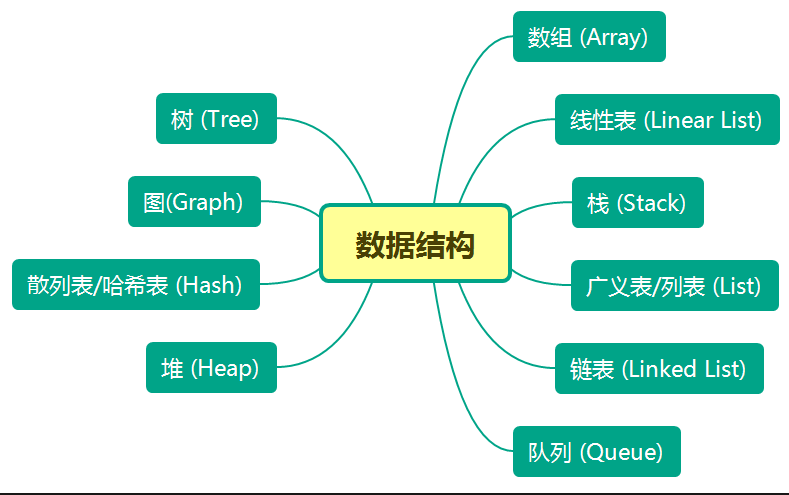
目录:第1章 绪论
1.1 什么是数据结构1.1.1 数据结构的定义1.1.2 逻辑结构1.1.3 存储结构1.1.4 数据运算1.1.5 数据类型和抽象数据类型1.2 算法及其描述1.2.1 什么是算法1.2.2 算法设计的目标1.2.3 算法描述1.3 算法分析1.3.1 算法分析概述1.3.2 算法时间性能分析1.3.3 算法空间性能分析1.4 数据结构+算法=程序1.4.1 程序和数据结构1.4.2 算法和程序1.4.3 算法和数据结构1.4.4 数据结构的发展第2 ...

[up主专用,视频内嵌代码贴在这]
.video-container {
position: relative;
width: 100%;
padding-top: 56.25%; /* 16:9 aspect ratio (height/width = 9/16 * 100%) */
}
.video-container iframe {
position: absolute;
top: 0;
left: 0;
width: 100%;
height: 100%;
}
.video-container {
position: relative;
width: 100%;
padding-top: 56.25%; /* 16:9 aspect ratio (height/width = 9/16 * 100%) */
}
.video-container iframe {
position: absolute;
top: 0;
left: 0;
width: 100%;
height: 100%;
}
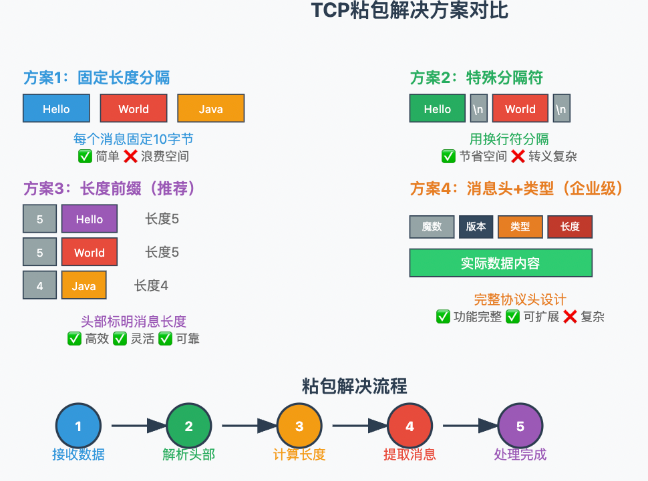
什么是粘包? 是指如果当发送端快速发送多条数据,但是接收端没有及时调用Receive,那么数据会在接收端的缓存中积累。
例如:当发送端先发送“1,2,3,4”四个字节,紧接着又发送“5,6,7,8”四个字节的数据;等到接收端调用Receive的时候,接收端的操作系统已经将接收到的全部数据写入缓存区,共接收到“8”个字节。
什么是半包? 也就是当发送端发送的数据太长了,但是接收端的缓存区没有足够的空间接收全部数据,就会接收一部分数据,另一
部分等下一次调用Receive的时候在接收 ...
.video-container {
position: relative;
width: 100%;
padding-top: 56.25%; /* 16:9 aspect ratio (height/width = 9/16 * 100%) */
}
.video-container iframe {
position: absolute;
top: 0;
left: 0;
width: 100%;
height: 100%;
}
创建C#“控制台应用(.net framework)”注意项目名为CsToSqlTest02,或者自行去改变命名空间。 这段代码是一个C#控制台应用程序,它允许用户通过命令行界面与一个SQL Server数据库进行交互。程序提供了两个主要功能:向数据库插入数据(INSERT)和从数据库查询数据(SELECT)。
完整代码如下:123456789101112131415161718192021222324252627282930313233343536373839404142434 ...
.video-container {
position: relative;
width: 100%;
padding-top: 56.25%; /* 16:9 aspect ratio (height/width = 9/16 * 100%) */
}
.video-container iframe {
position: absolute;
top: 0;
left: 0;
width: 100%;
height: 100%;
}
C#与SMTP服务简单应用代码如下: 主要是注意记得去开启SMTP服务,和获取授权码(开启服务后,会自动给用户)。
123456789101112131415161718192021222324252627282930313233343536373839404142using System;using System.Net;using System.Net.Mail;class Program{ public static string mailLocalAdd ;/ ...
.video-container {
position: relative;
width: 100%;
padding-top: 56.25%; /* 16:9 aspect ratio (height/width = 9/16 * 100%) */
}
.video-container iframe {
position: absolute;
top: 0;
left: 0;
width: 100%;
height: 100%;
}
这个简单直接上代码:1234567891011121314151617181920212223242526272829303132using System;using System.Net.Http;using System.Threading.Tasks;class Program{ static async Task Main() { Console.WriteLine("输入url地址:"); st ...